
Want to design your own 3D prints? There are several good programs, including free options for beginners and experienced designers.
The right choice depends on what you want to make. Designing a replacement gear, a decorative figurine, and a piece of furniture requires different approaches. Here are the four I've used, what each is good at, and a table at the end to help you pick.
Autodesk Fusion — Best for Functional 3D Prints
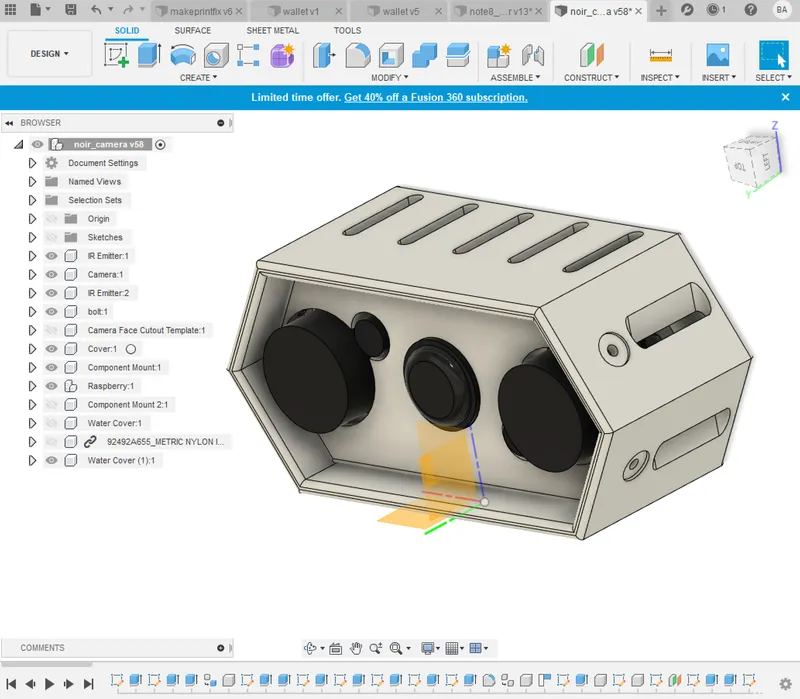
Autodesk Fusion is my primary design tool at Widget KC. It's particularly useful for replacement parts, custom brackets, enclosures, and anything requiring precise dimensions.
Best for: Functional parts, mechanical designs, assemblies, and products requiring accurate fit.
- Parametric modeling: Change a dimension and the model updates without starting over.
- Precise dimensions: Specify exact measurements, hole locations, angles, and clearances.
- Assemblies: Design multiple parts together and check how they fit or move.
- Reusable designs: Use parameters to create variations for different sizes or hardware.
- Learning curve: Moderate, but worth learning if you're serious about functional printing.
- Cost: Free for qualifying noncommercial personal use, with limits such as a cap on active editable documents and reduced export options; paid plans for commercial work.
- Platform: Windows and Mac desktop application with cloud-connected features.
Why use it: If a part needs to interface with other parts like a camera, align with existing screw holes, or hold a circuit board, Fusion makes it easy to build around those constraints and adjust the design later.
Tinkercad — Best for Absolute Beginners
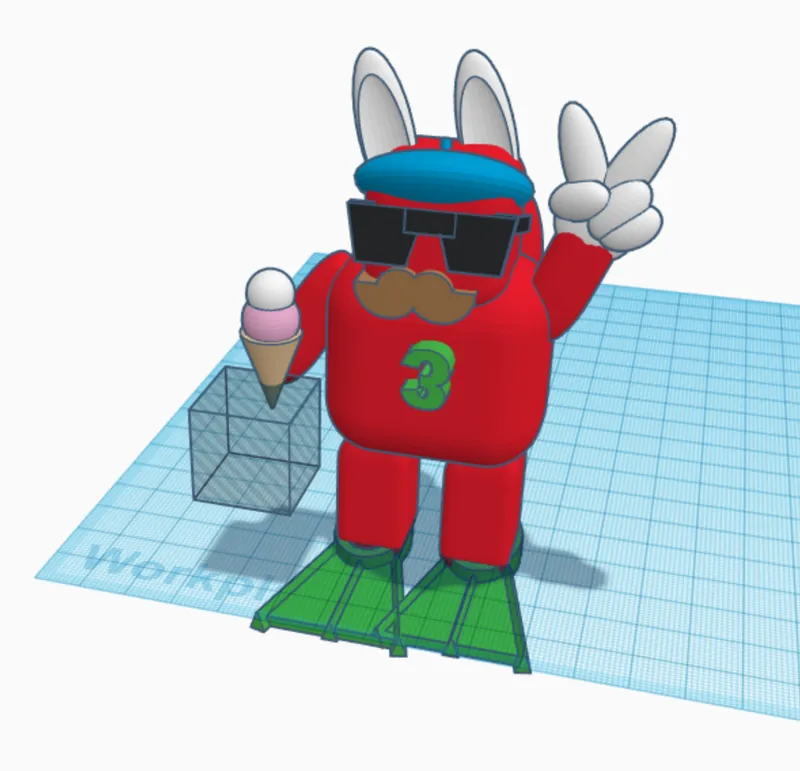
Tinkercad is a friendly introduction to 3D modeling. Think of it as digital LEGO: combine basic shapes, cut holes, and create something printable in minutes. My son designed the character below when he was seven.
Best for: Kids, first-time designers, school projects, and simple 3D prints.
- Shape-based modeling: Combine boxes, cylinders, and other shapes to build objects.
- Simple measurements: Enter dimensions and position shapes.
- Easy to learn: Most beginners can create something within 15 minutes.
- Built-in lessons: Interactive tutorials teach basic modeling concepts.
- Limitations: Precision work gets cumbersome, and there's no parametric feature history or advanced mechanical assemblies.
- Cost: Free.
- Platform: Web browser or iPad app; internet required.
Why use it: A low-pressure way to learn how 3D objects are constructed without getting overwhelmed by CAD tools.
SketchUp — Best for Furniture and Spatial Designs
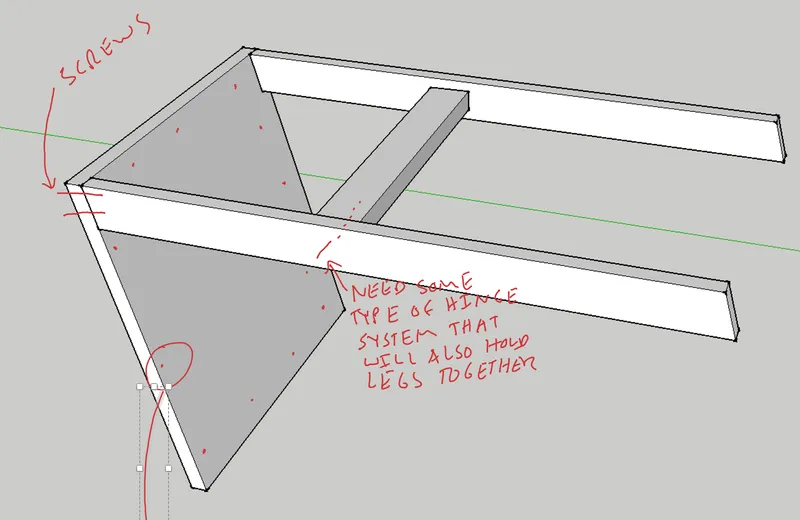
I used SketchUp for years to design a variety of projects, including the table shown below, before parametric CAD pulled me over to Fusion for mechanical work. Its straightforward drawing tools make it especially useful for furniture, woodworking, and larger objects.
Best for: Furniture, woodworking, architectural layouts, and general-purpose designs.
- Push/Pull modeling: Draw a 2D shape and quickly turn it into a 3D object.
- Dimensioned designs: Create accurately sized objects using measurements and guides.
- Components: Reuse parts such as legs, shelves, and hardware throughout a design.
- 3D Warehouse: Access a large library of existing models.
- Learning curve: Relatively easy to learn, especially for people familiar with drawing.
- Limitations: Less convenient than parametric CAD when repeatedly changing mechanical dimensions. The free web tier doesn't export STL on its own, so check current export options before committing to it for 3D printing.
- Cost: Free web version for noncommercial use; paid plans offer additional tools.
- Platform: Web browser; desktop versions available with paid plans.
Why use it: SketchUp shines when designing larger objects from relatively simple shapes, such as furniture or workshop fixtures.
Blender — Best for Artistic and Organic Shapes
Blender takes a different approach to modeling. Rather than concentrating on precisely dimensioned mechanical components, it excels at creating complex surfaces, characters, sculptures, and artistic designs.
Best for: Figurines, cosplay, characters, sculptures, and decorative 3D prints.
- Mesh modeling: Manipulate vertices, edges, and faces to create complex shapes.
- Digital sculpting: Shape objects with brushes, much like working with digital clay.
- Modifiers: Add smoothing, thickness, symmetry, and other effects without permanently changing the original geometry.
- Rendering and animation: Create realistic product images, visual effects, and animated scenes.
- Limitations: Less convenient than parametric CAD for dimension-driven mechanical designs.
- Learning curve: Steeper, with many tools and workflows to learn.
- Cost: Free and open source, including commercial use.
- Platform: Windows, Mac, and Linux.
Why use it: If you're designing a dragon, an action figure, or an elaborate decorative object, Blender offers creative tools that traditional CAD programs aren't built around.
Which One Should You Learn?
| What you want to design | Recommended software |
|---|---|
| Replacement parts, brackets, enclosures, anything that must fit | Autodesk Fusion |
| First projects or designs for kids | Tinkercad |
| Furniture and woodworking projects | SketchUp |
| Figurines, sculptures, cosplay, and organic shapes | Blender |
Don't feel obligated to learn every program. Pick one that matches the types of things you actually want to build.
For the functional 3D printing projects featured on Widget KC, Autodesk Fusion is my recommendation. Parametric modeling takes some practice, but being able to change a hole diameter, adjust a clearance, or resize an entire design without rebuilding it is worth the effort.
And don't be intimidated by its capabilities. You don't need to master the entire program to create useful parts. Learning sketches, dimensions, extrusions, and fillets will take you surprisingly far.